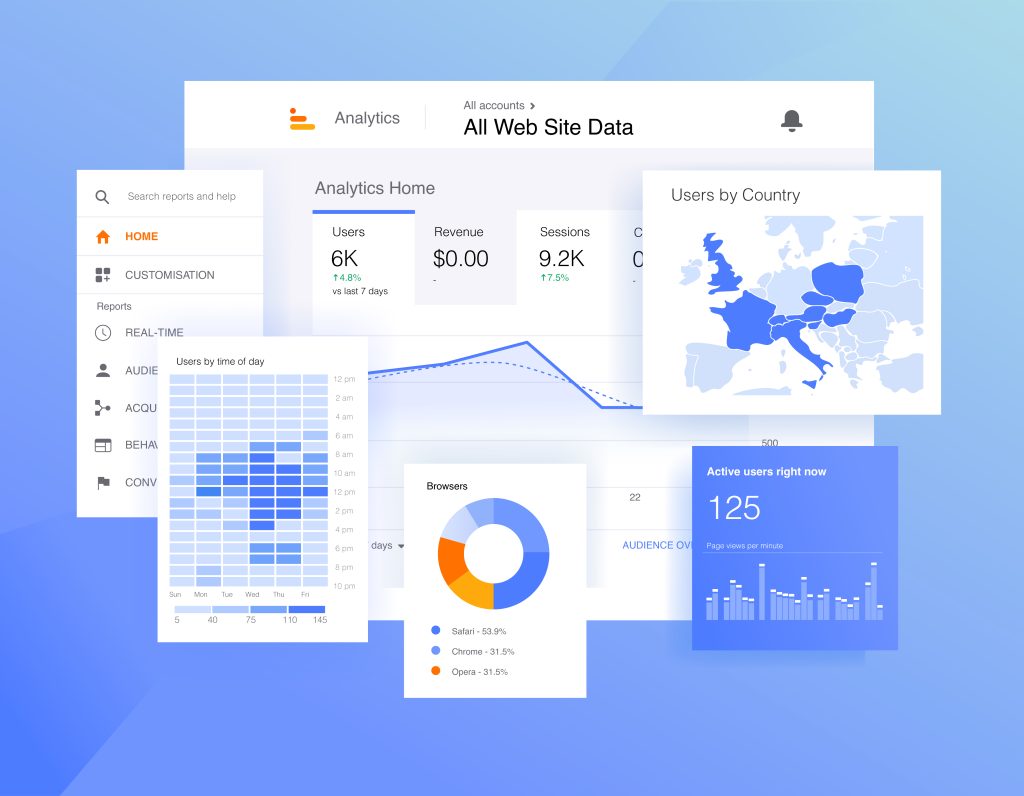
You’ve decided to leave Google Analytics. Maybe it’s the GDPR compliance headaches, the bloated script slowing your site, or simply not wanting to feed Google’s advertising machine with your visitors’ data. Whatever the reason, migrating to a privacy-first analytics alternative is simpler than you think.
This guide covers the full process: what to save before you leave, how to pick the right replacement, and how to switch without losing visibility into your site’s performance.
Short answer: Export your GA historical data, install a privacy-first tool (Plausible, Umami, or Matomo) while GA is still running, validate the numbers over 2–4 weeks, then remove GA and simplify your privacy policy. The technical steps take under an hour — the bigger shift is accepting that you’ll track less and make equally good decisions with it.
Why Leave Google Analytics
The reasons keep stacking up, and they’re harder to ignore than ever:
- Legal risk in the EU. Multiple European data protection authorities — France (CNIL), Austria (DSB), Italy (Garante) — have ruled that using Google Analytics violates GDPR because visitor data is transferred to US servers. Even with Google’s EU data hosting option, the legal gray area hasn’t closed.
- Cookie consent overhead. GA4 sets first-party cookies, requiring a consent banner under the ePrivacy Directive. That banner typically reduces your actual analytics data by 30–60% — visitors who reject cookies aren’t tracked, so your numbers are already incomplete.
- Performance cost. The GA4 tracking script is 45+ KB of JavaScript. On mobile connections, this measurably affects Core Web Vitals — particularly Total Blocking Time and Interaction to Next Paint.
- Complexity you don’t need. GA4’s event-based model and 200+ reports were designed for enterprise teams with dedicated analysts. Most site owners use under 5% of GA’s capabilities.
- Data fed into advertising. Google uses Analytics data to improve its advertising products. If you’re not running Google Ads, you’re handing Google value with nothing in return.
Step 1: Export Your Google Analytics Data
Before removing GA, save your historical data. You can’t import it into privacy tools — they use fundamentally different data models — but you’ll want it for reference: year-over-year comparisons, seasonal baselines, conversion benchmarks.
What to Export
- Monthly traffic overview — total users, sessions, pageviews for each month (minimum 12 months, ideally 24)
- Top pages — your 50–100 most visited pages with pageview counts
- Traffic sources — organic, direct, referral, social breakdown
- Top referrers — which sites actually send you traffic
- Country and device breakdown — high-level audience composition
- Conversion data — if you track goals, export completion rates before they’re gone
How to Export
The fastest method: open each report in GA4, set the date range to cover your full history, click the download icon (top right of any report), and choose CSV or Google Sheets. Do this for each report you care about.
For a more complete backup, use Google Analytics data export to BigQuery — the free tier handles most sites and preserves raw event data. You’ll rarely need that level of detail, but it’s worth having.
Put your exports in a clearly labeled folder with the date. You’ll be referencing these during the first few months to sanity-check whether your new tool’s numbers are in the right ballpark.
Step 2: Choose Your Alternative

The privacy analytics market has matured enough that you won’t be settling. Here are the main options matched to real use cases:
| Tool | Best for | Pricing | Hosting |
|---|---|---|---|
| Plausible | Simplicity, smallest script, no cookies | From $9/month | Cloud or self-hosted |
| Umami | Self-hosting, full data ownership, free | Free (self-hosted) | Self-hosted or Cloud |
| Matomo | GA-level features, enterprise needs | Free (self-hosted) or from €29/month | Cloud or self-hosted |
| Fathom | Multi-site management, ad-block bypass | From $15/month | Cloud only |
| Simple Analytics | EU-hosted, minimal setup | From $9/month | Cloud only |
If you’re still deciding, here’s the short version:
- Easiest switch on WordPress? → Plausible
- Want free, full data ownership, nothing leaving your server? → Umami self-hosted
- Need GA-level feature depth — heatmaps, funnels, A/B tests? → see the Matomo vs Plausible breakdown
- Managing many client sites and need ad-block bypass? → Fathom
Matomo is the only option that truly matches GA’s feature set, but it also brings GA’s complexity. For most content sites and small businesses, Plausible or Umami will give you everything you actually look at — and nothing you don’t.
Step 3: Install the New Tool First
This order matters: install your new analytics before removing Google Analytics. Run both in parallel for at least 2–4 weeks.
Two reasons this matters:
- No data gap. You never have a window where nothing is measuring.
- Built-in validation. Seeing both tools side-by-side tells you if something’s misconfigured. The numbers won’t match exactly — different counting methods make that impossible — but they should be within roughly 20–30% of each other. A bigger gap usually means the new script isn’t firing on all pages.
Most privacy analytics tools are running within 10 minutes of signup. See the step-by-step guides for setting up Plausible on WordPress or self-hosting Umami on a VPS.
Step 4: Run Parallel Tracking
During the overlap period, open both dashboards a few times a week. The differences you’ll see are mostly by design, not bugs:
- Visitor counts will differ. GA tracks users via cookies, so the same person returning later in the day is still one user. Privacy tools typically use daily hashes — the same visitor the next day may count as a new visit. Neither approach is wrong; they’re measuring different things.
- Bounce rate may differ. GA4 uses “engagement rate” (its inverse of traditional bounce). Privacy tools usually surface the classic definition: single-page visits divided by total visits.
- Referral data should align. If your new tool shows dramatically different traffic sources, check that the script is loading on every page — not just the homepage.
- Bot traffic filtering. GA filters known bots automatically. Privacy tools handle this differently, with varying bot lists. If your new tool shows 20%+ higher traffic, bots are probably the cause — check for unusual referral sources or direct spikes.
Two weeks of parallel data is usually enough to feel confident. Four weeks gives you one complete business cycle to compare against.
Step 5: Remove Google Analytics

Once you’re confident in the new tool, remove all GA code. The tricky part is that GA can be installed in multiple places without you realizing it — check all of these:
WordPress-specific locations
- Google Site Kit plugin — deactivate and delete entirely
- MonsterInsights or ExactMetrics plugin — deactivate and delete
- Theme Customizer → look for “Google Analytics ID” or “Tracking Code” fields
- Insert Headers and Footers plugin (WPCode) — check the header and footer script areas
- functions.php — search for
gtag,analytics,UA-, orG- - Google Tag Manager — if you use GTM, remove the GA4 tag from your container (don’t just delete GTM itself, or you’ll lose other tags)
Verify removal
After removing GA, confirm it’s gone before moving on:
- Clear all caches — plugin cache, CDN, browser cache
- Open your site in an incognito window
- Open browser DevTools → Network tab
- Search for
google-analytics,gtag, orgoogletagmanager - If nothing shows up, GA is fully removed
Run PageSpeed Insights before and after — the GA script removal often shows up as a measurable improvement in Total Blocking Time.
Step 6: Update Your Privacy Policy
Your privacy policy almost certainly mentions Google Analytics by name. Update it to reflect what you’re actually using now. If you switched to a cookieless tool like Plausible or Umami, this section gets much shorter:
- Remove all references to Google Analytics, Google cookies, and GA data processing
- Remove or significantly trim the cookie policy section — if your new tool sets no cookies, that section becomes a sentence, not a page
- Add a brief description of what your new tool collects: aggregate traffic data, no personal information, no cross-site tracking
- If no cookies are set, state clearly that no cookie consent is required for analytics
That last point is worth emphasizing: if your new tool is cookieless, you may be able to remove the consent banner entirely for analytics purposes. Double-check first — WordPress comment cookies, WooCommerce session cookies, and third-party embeds (YouTube, social widgets) can each require their own consent. Remove those too and you’ve genuinely cleaned house. See the cookie consent best practices guide for a full checklist.
Step 7: Adjust Your Workflow
Privacy analytics tools give you less data than GA. That’s the point. Here’s what changes and what doesn’t:
- No user-level tracking. You can’t follow individual user journeys. Shift your attention to page-level and source-level trends, which is where almost all the useful decisions come from anyway.
- No demographic data. Age, gender, and interest segments came from Google’s ad network — data you never directly owned. Privacy tools don’t collect it, and for most content decisions, you won’t miss it.
- Simpler conversion tracking. Instead of GA4’s complex event model, privacy tools use straightforward goal tracking: a URL visit or a custom event fires. Pick 3–5 goals that matter and track only those.
- No cross-device stitching. Privacy tools can’t connect a phone visitor to a laptop visitor when they’re the same person. Unique visitor counts run slightly high. That’s an acceptable trade-off for not tracking people across devices without consent.
Most people find that after a few weeks with a simpler dashboard, they spend less time in analytics and make the same quality of decisions. When there are only 8 metrics visible instead of 200, it gets easier to act on what you see. For SEO specifically, pairing your new analytics with privacy-friendly SEO measurement closes the remaining gaps.
FAQ
Can I import my Google Analytics historical data into Plausible or Umami?
Plausible offers a Google Analytics import feature that pulls in historical aggregate stats — pageviews, sources, countries — so they appear in your Plausible dashboard alongside new data. No individual user records transfer. Umami and Fathom don’t currently offer a GA import.
Will my Google Search Console stop working?
No. Search Console is completely separate from Google Analytics. It tracks how your site appears in Google search results and works through site verification — DNS record, HTML file, or meta tag — not through the GA script. Keep using it. For SEO, it’s more useful than GA ever was.
What if my boss or client insists on Google Analytics?
Lead with legal risk: the GDPR rulings from CNIL, DSB, and Garante are documented and public. Then show the performance cost (PageSpeed scores with and without GA). Finally, point to data quality: with a 30–60% consent rejection rate among EU visitors, the GA data they’re relying on is already missing a substantial chunk of their audience. Offering to run both tools in parallel for a month, then compare what decisions each dashboard actually drove, tends to make the point without requiring anyone to take anything on faith.
Do I need to delete my Google Analytics account?
No. Once you remove the tracking script, GA stops collecting new data. The account and its historical reports stay accessible indefinitely. If you want a clean break, you can delete the property in GA4 settings — but that’s permanent and cannot be undone. Remove the script first; delete the account only if you’re certain you won’t need the historical data.
How long does the full migration take?
The technical work — exporting data, installing the new tool, removing GA, updating the privacy policy — takes under two hours for most WordPress sites. The parallel validation period (weeks 2–4) is the only time-consuming part, and it runs in the background while you work normally. You’re not blocked from removing GA until that window closes; you’re just gathering confidence before you do.
Make the Switch
The migration itself isn’t the hard part. The hard part is deciding you’ve had enough — and if you’re this far into the guide, you probably already have.
Start with the setup guide for your chosen tool: Plausible on WordPress is the fastest path for most sites. If you want full data ownership with nothing leaving your own server, the self-hosted Umami guide walks you through the whole VPS setup. Your visitors’ data stays where it belongs.